0

I have installed grsync so I can backup files from my laptop to my folder on a local server. When I run it manually, the files copy across, no problem.

I want this to happen automatically when I log in.

I have set up a Startup Application task but it does not work. Here are the commands I have tried:

grsync -e backupname    
rsync -e backupname    
/usr/bin/grsync   #(this opens the grsync gui on log in)

Can anyone tell me the correct command to put in startup applications?

Jacob Vlijm
  • 83,767

2 Answers2

3

Grsync is meant as a GUI to rsync. You can use it also very easily to "compose" The command, to use on startup (e.g. if you are unsure how to create the rsync command):

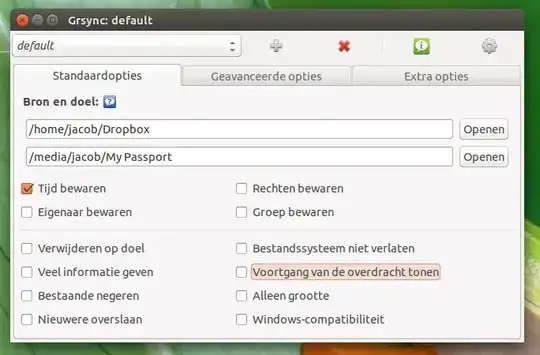
  • in Grsync, choose source and destination, as well as your options:

    enter image description here

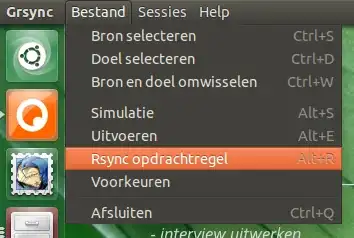
  • Choose "File" > "Command line":

    enter image description here

  • A window will popup with the command you are looking for:

    enter image description here

  • Copy the command you created in Grsync and add it to your startup applications:

    rsync -r -t -s /home/jacob/Dropbox /media/jacob/'My Passport'
    

    Add to Startup Applications: Dash > Startup Applications > Add

Notes

  1. After login, you might have to wait a number of seconds for the (external?) drives to be mounted. If so, you can do that as in the command below:

    /bin/bash -c "sleep 10&&rsync -r -t /home/jacob/Dropbox /media/jacob/'My Passport'"
    
  2. If you'd like to log your backups, simply add to you command:

    >> /path/to/logfile 2>&1
    

    so the command would be for example:

    /bin/bash -c "sleep 10&&rsync -r -t /home/jacob/Dropbox /media/jacob/'My Passport' >> /home/jacob/Bureaublad/log.txt 2>&1"
    
  3. If your command includes names with spaces (in the directory), place those names between quotes. From the example: My Passport should be: 'My Passport'

Jacob Vlijm
  • 83,767
  • I always like your answers. complete and cute :) – αғsнιη Feb 03 '15 at 08:33
  • Thanks for this! I have followed your instructions but it still will not work. Here is command that was generated: rsync -r -t -s /home/paul/Documents /run/user/1000/gvfs/smb-share:server=192.168.0.11,share=pbaker/test – Paul Baker Feb 03 '15 at 11:27
  • @PaulBaker My guess is that there is a mount issue, probably the share is not mounted at the moment you start the command. You probably need to either automount the share (in fstab) or write a small script that mounts the share first, then makes the backup. If you use the >> /path/to/logfile 2>&1 option (Notes: 2), you should be able to see what went wrong. – Jacob Vlijm Feb 03 '15 at 12:08
  • @JacobVlijm You are right. Here is the error message: rsync: mkdir "/run/user/1000/gvfs/smb-share:server=192.168.0.11,share=pbaker/test" failed: No such file or directory (2) rsync error: error in file IO (code 11) at main.c(674) [Receiver=3.1.0] – Paul Baker Feb 03 '15 at 12:35
  • @PaulBaker Is the share automounted? If so, the "sleep" option will do (but you probably will need more then 10 seconds). ELse you could automount the drive, since you seem to use it regularly, see http://askubuntu.com/a/429496/72216. If you mount it in ~/<network_sharename>, the rsync command will become much simpeler, the it works just like a local folder. – Jacob Vlijm Feb 03 '15 at 12:40
  • @PaulBaker did you manage? – Jacob Vlijm Feb 04 '15 at 15:00
0

This guide here explains how to launch and configure the rsync daemon on system startup.

Alternatively, you can add your commands to the end of the /etc/rc.local script that is executed upon startup. By adding your commands in here it will execute them when you startup your machine.

sudo nano /etc/rc.local

Then type in your commands that you wan't (be sure to add them before the exit 0 line), save the file with Ctrl + O and then exit nano. The commands should then be executed on startup.

Hope this has helped you out.

jkrix
  • 68
  • 1
  • 8