21

I like to switch sometimes between Lubuntu and Ubuntu 2D on my laptop. But I especially like to choose which one I will use in the session I am about to start. But the only way of choosing is start the laptop up, and the last used thing will show up (as it should), then log out completely, and choose the other thing from the login menu.

I have spent a lot of my lifetime using Windows, and always I was asked a login BEFORE I actually could do anything. Now I think it is weird that anyone can log into a password-protected account without giving any passwords, as long as the last user was the Admin. Also: will logging out before shutdown help?

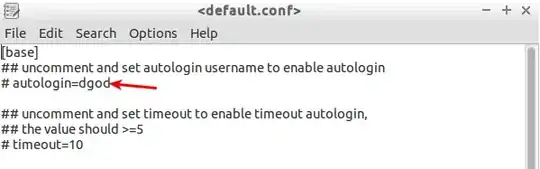
Here is my default.conf file.

Peachy
  • 7,117
  • 10
  • 38
  • 46
nathan
  • 213
  • 1
    Can you paste the contents of default.conf to http://paste.ubuntu.com instead of taking a screenshot? Be sure to give a link. – nanofarad Aug 30 '12 at 18:52

3 Answers3

15

Try this. To disable autologin, just press Ctrl+Alt+T on your keyboard to open Terminal. When it opens, run the command below.

sudo leafpad /etc/lxdm/default.conf

In the fist few line, you will see something like autologin=username change it to the original state of # autologin=dgod. Save the file, and then reboot your machine.

Also try to go to System Settings --> Users and Groups, click on change next to Password

enter image description here

Make sure that the box is unchecked next to Don't ask for password on login enter image description here

Try to edit sudo leafpad /etc/lightdm/lightdm.conf with these contents:

Remove or comment out the following lines

autologin-user=username
autologin-user-timeout=0

For 14.04 everything works. The /etc/lightdm/lightdm.conf doesn't exist in 14.04, but the other ways work. See image below:

enter image description here

enter image description here

Mitch
  • 107,631
  • Tried it 3 times (Lubuntu: old hardware => massive startup time) and no difference at all. The file saved correctly as it is still changed to what you said. Maybe there is another setting that still has to be adjusted? – nathan Aug 30 '12 at 17:35
  • Can you include the output of your default.conf file? – Mitch Aug 30 '12 at 18:21
  • these are the first lines of it: @Mitch [base]

    uncomment and set autologin username to enable autologin

    autologin=dgod

    uncomment and set timeout to enable timeout autologin,

    the value should >=5

    timeout=10

    default session or desktop used when no systemwide config

    session=/usr/bin/startlubuntu

    uncomment and set to set numlock on your keyboard

    numlock=0

    – nathan Aug 30 '12 at 18:24
  • I don't know how to do the grey box thing nor how to start new lines without sending the comment in... I'm really sorry. – nathan Aug 30 '12 at 18:31
  • No need to be sorry. What Lubuntu release are you running? – Mitch Aug 30 '12 at 18:34
  • sysinfo tells me it is called: Ubuntu 12.04 (Precise) Does that mean that it isn't Lubuntu? – nathan Aug 30 '12 at 18:47
  • Lububtu is based on Ubuntu. Give me some time, I'll install Lubuntu, and get back to you. – Mitch Aug 30 '12 at 18:48
  • umm.. sorry for the interruption, but Mitch, can you move this to chat please? May be someone from AUGR can also jump in to assist, if required. @nathan: We tend to keep comments minimal and have discussions in chat. You can now talk in chat. click here – Mahesh Aug 30 '12 at 19:04
  • For an update: The question was solved in chat, and the answer now contains updated solution. – Mahesh Aug 30 '12 at 20:15
  • 2
    This answer needs updating. As is, it seems to pile up solutions without varifying which ones actually work and in which versions of Lubuntu. I can attest that the GUI version does not work in 14.04, editing /etc/lxdm/default.conf doesn't work too, and /etc/lightdm/lightdm.conf doesn't even exist. – mikewhatever May 10 '14 at 15:20
  • @mikewhatever See added info in my answer. – Mitch May 10 '14 at 17:41
  • Needs updating. None of the edited files exist.

    Use Adriaan's solution below instead.

    – JLuc Oct 02 '23 at 10:23
5

Ubuntu / Lubuntu 20.10:

First edit

vi /etc/sddm.conf

It looks like this:

[Autologin]
User=<your_user>
Session=Lubuntu

I assume you can just comment out the entries:

[Autologin]
#User=<your_user>
#Session=Lubuntu

Adapt and reboot

2

So I am using a Lubuntu 14.04.1 LTS installed on a USB stick. And this is how I managed to disable auto loging for Live Session User.

  1. Create e new user (to use for loging): System Tools -> Users and Groups

  2. Open console: System Tools -> XTerm

  3. enter command:

    sudo leafpad /etc/lightdm/lightdm.conf
    

    the text editor should apear

  4. replace line:

    autologin-user=lubuntu
    

    with

    autologin-user=name_of_user_you_created
    

    optional you could change line

    autologin-user-timeout=0
    

    to

    autologin-user-timeout=60"
    
  5. save and close file

  6. reboot

for more info access: https://wiki.ubuntu.com/LightDM

After power up you should see the login screen with the user you created waiting for password.

Atention: user "lubuntu" is still there but is not presented in the dropdown list. if you want to access it you need to chose other then insert user name by hand. Also leave blank for password as user lubuntu does not have a password by deault.

V Bota
  • 703